How to Recover Deleted Photos on Your Phone: Free Methods and Recovery Apps
Accidentally deleting precious photos can be a heart-stopping moment, but many images can be retrieved.
Anúncios
This guide explores the most effective methods, from free built-in tools to recovery apps, to help you recover your lost memories.
The instant realization that a cherished photograph, perhaps from a once-in-a-lifetime vacation, a significant family event, or a child’s first moments is gone can trigger immediate panic.
Anúncios
In today’s digital age, our most treasured visual memories are often stored on our smartphones and cloud services, making their accidental deletion a particularly distressing experience.
Photos Not in the Trash?
You will be redirected to another website
How to Recover Deleted Photos for Free
Many deleted photos can be recovered using the built-in features provided by your device or cloud storage service.
These methods are free, safe, and often the most effective for recently deleted items.
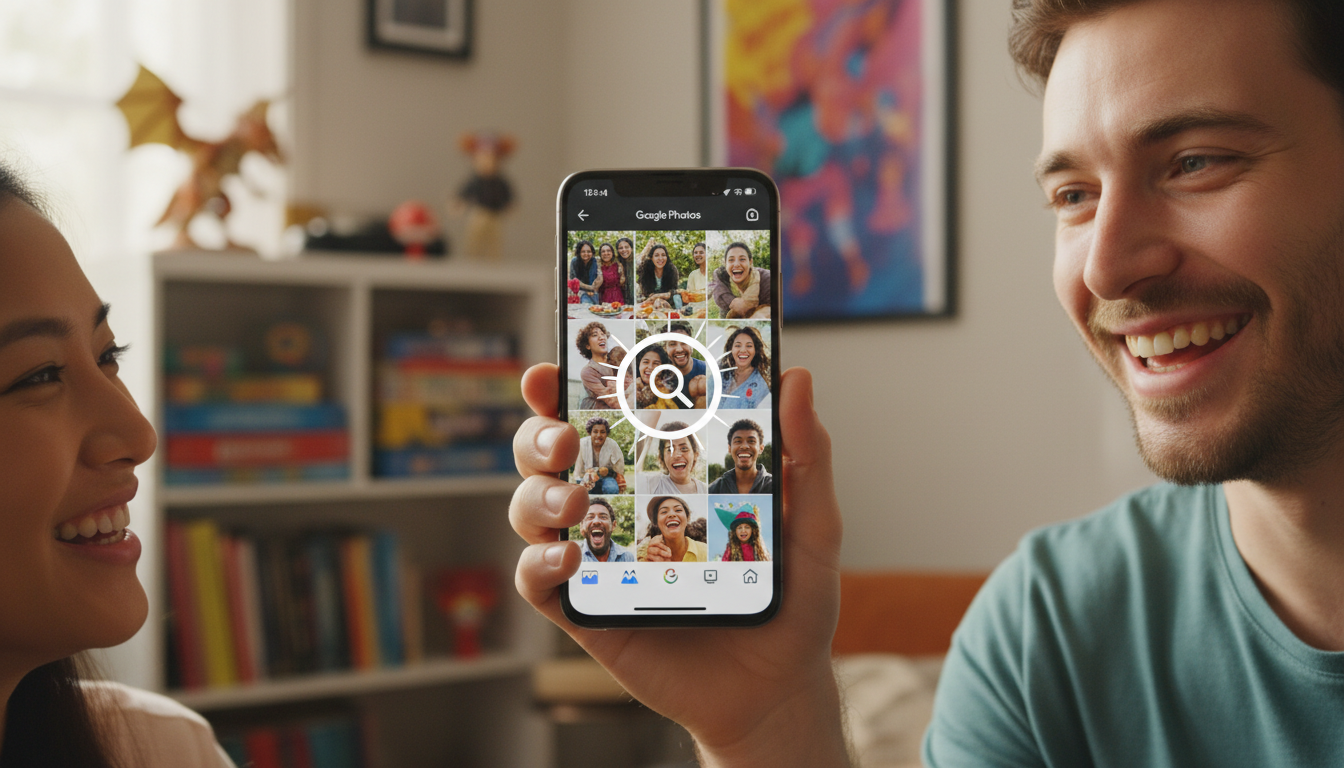
Google Photos
If you use Google Photos and have backup enabled, your deleted photos might still be recoverable.
Google Photos moves deleted items to a “Trash” folder, where they are stored for a specific period before permanent deletion.
Items that were backed up to Google Photos are kept in the Trash for 60 days.
For items that were not backed up, they typically remain in the Trash for 30 days on Android devices before being permanently removed.
To restore deleted photos from Google Photos:
Open the Google Photos app on your device or go to photos.google.com.
Tap on “Library” in the bottom menu.
Select “Trash” (or “Bin” on some versions).
Long-press on the photo(s) you wish to recover.
Tap “Restore” at the bottom of the screen.
iPhone (Photos App)
Apple’s Photos app on iPhones includes a “Recently Deleted” album, similar to a trash bin.
Deleted photos and videos are moved here and remain for 30 days before being permanently erased from your device.
If you use iCloud Photos, deleting a photo from one device will remove it from all devices synced with your iCloud account, and it will also appear in the “Recently Deleted” album across them.
To restore deleted photos from your iPhone:
Open the “Photos” app.
Tap on the “Albums” tab at the bottom.
Scroll down to the “Utilities” section and tap “Recently Deleted.”
Tap “Select” in the top-right corner.
Choose the photos you want to recover.
Tap “Recover” at the bottom-right corner.
Scan Your Phone for Deleted Photos
You will be redirected to another website
Samsung Galaxy (Gallery App)
Samsung Galaxy devices often feature a “Recycle Bin” (or Trash) within the Gallery app, provided the feature is enabled.
This acts as a temporary holding place for deleted photos and videos.
Items placed in the Samsung Gallery’s Recycle Bin typically stay there for 30 days before being automatically and permanently deleted.
To recover photos from the Samsung Gallery Recycle Bin:
Open the “Gallery” app.
Tap the three horizontal lines (menu icon) usually found at the bottom-right or top-left.
Select “Recycle Bin” or “Trash.”
Tap “Edit” or long-press on the photos you wish to restore.
Tap “Restore” or the restore icon.
Cloud Storage Services (Google Drive, OneDrive)
If your photos were stored in cloud services like Google Drive or Microsoft OneDrive (and not solely within a photo-specific app like Google Photos), their respective trash or recycle bin features can be utilized.
Deleted files in both Google Drive and Microsoft OneDrive are generally kept in their trash or recycle bin for 30 days.
After this period, they are permanently removed.
To restore photos from Google Drive:
Go to drive.google.com or open the Google Drive app.
Click or tap “Trash” (or “Bin”) from the main menu.
Locate the deleted photo(s).
Right-click (on desktop) or long-press (on mobile) and select “Restore.”
To restore photos from Microsoft OneDrive:
Go to onedrive.live.com or open the OneDrive app.
Click or tap “Recycle bin” (or “Trash”) from the left-hand navigation pane.
Select the photos you want to recover.
Click or tap “Restore” at the top of the page.
Service/App | How Long Deleted Photos Stay | Where to Find Them |
|---|---|---|
Google Photos (Backed Up) | 60 days | Library > Trash |
Google Photos (Not Backed Up – Android) | 30 days | Library > Trash |
iPhone Photos (Recently Deleted) | 30 days | Albums > Recently Deleted |
Samsung Gallery (Recycle Bin) | 30 days | Gallery Menu > Recycle Bin |
Google Drive / OneDrive | 30 days | Trash / Recycle Bin |
Photos Received on WhatsApp
When photos are received via messaging apps like WhatsApp, the recovery process can differ.
If you deleted a photo that was sent to you on WhatsApp, it might not be in your phone’s main photo gallery trash. However, there are a few straightforward options.
The simplest approach is often to ask the sender to resend the photo. If they still have it on their device or in their chat history, they can easily share it with you again.
Alternatively, check your phone’s local storage. Depending on your settings, WhatsApp might save received media in a specific folder within your phone’s file system (e.g., “WhatsApp/Media/WhatsApp Images”).
If the photo was saved here and then deleted, it might be found in your phone’s main trash folder (if applicable) or potentially recoverable by specialized apps if not overwritten.
If you regularly back up your WhatsApp chats, it’s possible to restore photos by reinstalling the app and choosing to restore from a backup.
However, this process will restore your entire chat history up to the point of the backup, not just individual photos.
When the Trash Is Empty: Photo Recovery Apps
If the built-in trash folders are empty or the retention period has passed, photo recovery apps become a potential avenue.
These applications are designed to scan your device’s storage for remnants of deleted files that have not yet been overwritten.
On Android devices, many recovery apps can perform deep scans of the internal storage and SD cards. They look for data fragments and attempt to reassemble them into viewable files.
The success rate can vary significantly. Files that have been overwritten by new data are usually impossible to recover.
iPhones have much stricter security protocols that limit the ability of apps to perform deep scans of the device’s file system.
Therefore, on iPhones, the realistic options for recovering deleted photos usually remain limited to the “Recently Deleted” album, iCloud backups, or other cloud service backups.
Third-party recovery apps on iPhone typically rely on accessing data from device backups rather than directly scanning storage.
The effectiveness of any recovery app is heavily dependent on how quickly you attempt recovery after deletion and how much you have used the device in the interim.
The sooner you run a scan after deleting a photo, and the less you use the device, the higher the probability that the deleted data remains intact and can be recovered.

How to Choose a Safe Recovery App
When free methods fail, and you decide to try a recovery app, it’s essential to proceed with caution.
The app market is filled with options, and not all are reliable or safe. Prioritizing security and effectiveness is paramount.
Stick to Official App Stores: Only download recovery apps from trusted sources like the Google Play Store for Android or the Apple App Store for iPhone.
Avoid downloading APK files or software from unofficial websites, as these can contain malware.
Research the Developer and Reviews: Look for apps developed by reputable companies. Check user reviews and ratings on the app store.
High download numbers and positive feedback can indicate a trustworthy application, but always read a few recent reviews to understand current user experiences.
Examine App Permissions: Before installing, carefully review the permissions the app requests.
A photo recovery app will necessarily need access to your storage, but be wary of apps asking for excessive permissions unrelated to their core function, such as access to contacts, SMS messages, or location services.
Be Aware of Ads and Paid Upgrades: Many free recovery apps are supported by advertisements, which can be intrusive.
Others might offer basic scanning for free but require payment to recover the found files or unlock advanced features. Understand the cost structure upfront.
Preview Before Paying: A good recovery app will typically allow you to preview the photos it finds before you commit to purchasing the full version or a subscription.
Never pay for an app before you have confirmed that it has actually located the specific photos you want to recover.
How to Never Lose Your Photos Again
The most effective strategy for dealing with deleted photos is prevention. Implementing robust backup solutions ensures that your memories are safe, even if accidental deletions occur.
Enable Automatic Cloud Backups: Services like Google Photos and iCloud Photos offer automatic backup features. Ensure these are turned on and configured to sync your photos wirelessly.
This means your photos are saved to the cloud as soon as they are taken or when your phone is connected to Wi-Fi.
Regularly Check Your Backups: Periodically verify that your cloud backup service is actively syncing and that your photos are indeed being uploaded. Sometimes, settings can change, or sync issues may arise.
Maintain a Second Copy: For exceptionally important photos, consider maintaining a second copy.
This could be on an external hard drive, a USB flash drive, or another cloud storage service. This redundancy provides an extra layer of security.
Manage Storage Mindfully: Before deleting photos to free up space, take a moment to review them.
Ensure you don’t need them for future reference or sentimental value. If in doubt, back them up elsewhere before clearing them from your device.
Frequently Asked Questions
Can I recover photos deleted from my SD card?
Yes, if the photos were stored on an SD card and subsequently deleted, recovery apps designed for Android or desktop computers (if you use an SD card reader) may be able to scan the card and recover them, provided the data hasn’t been overwritten.
How long does it take for deleted photos to be permanently gone?
This varies. Built-in trash folders usually hold items for 30 to 60 days.
After that, the data might still exist on the device’s storage until new data overwrites it, which could happen quickly or slowly depending on device usage.
Is it possible to recover photos from a factory reset phone?
Recovering photos from a phone that has been factory reset is extremely difficult and often impossible, especially on modern Android and iOS devices due to encryption and data sanitization processes.
If backups were not made prior to the reset, recovery is highly unlikely.
Do I need to pay to recover my photos?
Not always. Many deleted photos can be recovered for free using built-in trash features on your phone or cloud services.
Paid recovery apps are typically only necessary when these free methods fail, and even then, you should aim to preview recoverable photos before purchasing.
What is the biggest factor affecting photo recovery success?
The most significant factor is whether the data has been overwritten. The less the device has been used since the deletion, and the sooner you attempt recovery, the higher the chances of success.
Can I recover deleted photos from years ago?
It’s highly improbable to recover photos deleted years ago unless they were backed up to a cloud service or external storage that you still have access to.
Data on device storage that has not been actively backed up is usually overwritten much sooner.
Are photo recovery apps safe to use?
Many are safe, especially those from official app stores with good reviews. However, caution is advised.
Always check permissions and developer reputation to avoid malicious apps or those that violate your privacy.
What should I do if my photos are corrupted after recovery?
If recovered photos appear corrupted, it may indicate that the data was partially overwritten or damaged.
Sometimes, trying a different recovery app or a more advanced scanning option might help, but severely damaged files may be unrecoverable.
Conclusion
Losing photos can be a distressing experience, but the good news is that recovery is often possible.
By understanding how your device and cloud services manage deleted files, you can leverage built-in trash and recycle bin features to retrieve most recently deleted images for free.
When these options are exhausted, specialized recovery apps may offer a solution, particularly on Android devices, though success is not guaranteed and depends heavily on prompt action and minimal device usage.
The most reliable approach to safeguarding your memories is proactive: ensure automatic backups are enabled across your devices and cloud services, and consider maintaining redundant copies of your most precious photos.
By taking these steps, you can significantly reduce the risk of permanent photo loss and enjoy peace of mind.
Information verified in October 2026.
Sources: Google Photos Help (support.google.com); Apple Support (support.apple.com); Samsung Support (samsung.com); Microsoft Support (support.microsoft.com).
Disclaimer: This is an independent guide and is not affiliated with Google, Apple, Samsung, Microsoft, or any third-party app developer. Photo recovery is not guaranteed and depends on various factors, including how recently the photos were deleted and whether the data has been overwritten. Always install apps only from official stores and carefully review their permissions and terms of service.